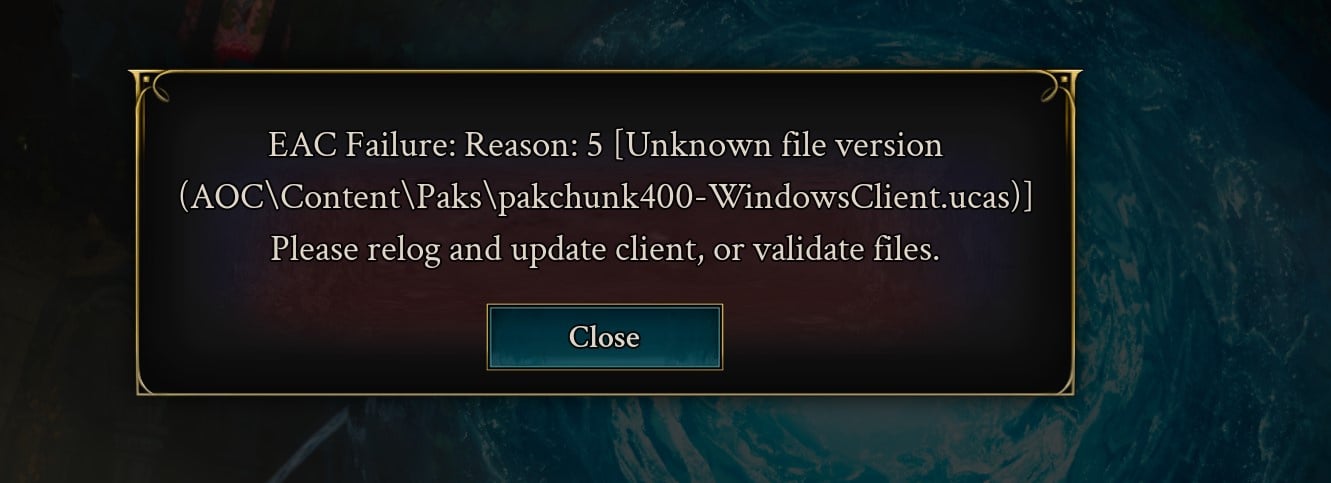
The core of the problem is a "desync" or mismatch between what Easy Anti-Cheat (EAC) expects to see and the actual files on your hard drive. EAC thinks the file listed (pakchunk400-WindowsClient.ucas) is modified, corrupted, or from the wrong version of the game, so it kicks you to prevent cheating.
What causes this?
- Antivirus Interference: McAfee or other aggressive antivirus software blocks the game from updating certain files correctly.
- Patching Errors: Sometimes the Steam update process doesn't properly replace old "pakchunk" files with the new ones.
- False Positives: EAC is notoriously sensitive; even a minor hitch during a download can flag a file as "unknown."
How to Fix It
Because "Validating Files" alone often fails for this specific error, try these steps in order:
- Delete the specific file:
- Navigate to:
...\SteamLibrary\steamapps\common\Ashes of Creation\Game\AOC\Content\Paks\ - Find the file named in your error:
pakchunk400-WindowsClient.ucas. - Delete it (and any associated
.utoc file with the same number).
- Verify Integrity on Steam:
- Right-click Ashes of Creation in your Steam Library > Properties > Installed Files > Verify integrity of game files.
- Steam will see the file is missing and download a fresh, "clean" version.
- Check your Antivirus (Crucial):
- If you use McAfee, you must either uninstall it or add the entire Ashes of Creation folder to the "Exclusions" list.
- If you don't use McAfee, ensure Windows Real-time Protection isn't flagging the game folder.
- Reboot & Launch as Admin:
- Restart your PC after the verification is finished.
- Try launching Steam as an Administrator before hitting Play.
Note: If the error reappears with a different number (e.g., pakchunk200), it means multiple files are desynced. You may need to delete those specific files as they appear or, in extreme cases, perform a full reinstall.
