Here I want to collect all good informations about linux support from community members. Please keep his thread clean and only comment your informations, tips or workarounds. Together we will rise up and make our main game ready for linux in the future.
Complete Tutorial: How to Get Ashes of Creation Running
For gaming, Fedora or Arch-based distros are recommended, as they tend to offer better performance and compatibility. Debian-based distros should be avoided for gaming due to potential issues.
Step 1: Install Faugus Launcher
Based on experience, I use the Faugus Launcher here. Why, you ask? Well, we kept trying Bottles and Lutris, but the development of both tools has practically come to a standstill. Due to their spaghetti code, errors arise that are becoming increasingly complex and bizarre. That's why I chose the Faugus Launcher — it's simply a GUI for the Proton prefixes and is very lightweight. This reduces potential sources of errors to a minimum, and as the saying goes: sometimes, less is more.
https://github.com/Faugus/faugus-launcher
 Step 2: Install the Launcher for Ashes of Creation
Download the Intrepid Launcher from the official Ashes of Creation website.
Select GE-Proton latest in Faugus. Or to prevent breakage after updates use a fixed Version like GE-Proton10-15.

During installation, ensure you select everything in the checkbox like EAC, Webview2 and C++ Redistributable
Important: After installation, do not launch the launcher immediately. Instead, click Finish and uncheck the option to launch the launcher.
Step 3: Select the right EXE for Faugus
After installing the launcher and closing it afterwards, it might happen that the wrong EXE file was selected under "Game Path" in Faugus. Simply change this to IntrepidLauncher.exe.
 Step 4: Set Up Steam for Launching
Open Steam and click on Add a Non-Steam Game.
Find and select AOCClient.exe from your Faugus Launcher prefix installation folder.
In the Steam Launch Options, add the following code:
eval $(%command% LauncherTetherPort=$(ss -ulpn | awk '/wineserv/ {split($4, a, ":"); print a[2]}') -USEEOS=0 -DXVK_FRAME_RATE=60)
I included a framerate limit in this command. If you don’t want that, you need to remove -DXVK_FRAME_RATE=60.
Also enable Proton Hotfix for the AOCClient.exe. You can use ProtonPlus to add Proton-GE latest to your Steam Client, if you want to try other Proton runner.
This will allow Steam to launch the game alongside the running launcher.
Step 5: Play the Game
Now, with the launcher open in Faugus Launcher and Steam configured, simply click Play in Steam. Ashes of Creation should launch successfully, and you can start playing!
Common IssuesIf you change the Proton version in your Ashes prefix or Proton receives an update, WebView2 may break, causing the login form to appear black again. Here's how to fix it:
Open Winetricks in the Faugus Launcher settings
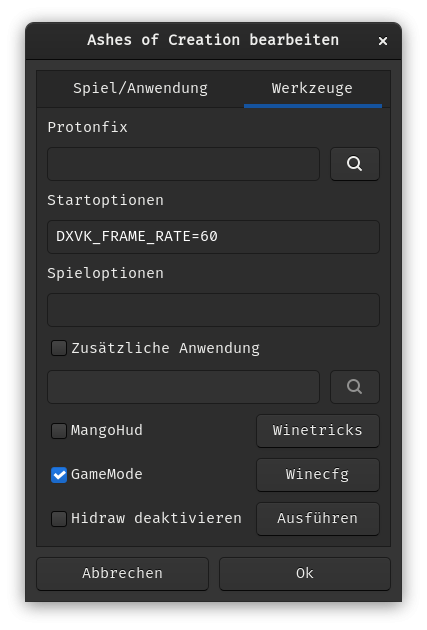
Then you choose the Standard Prefix
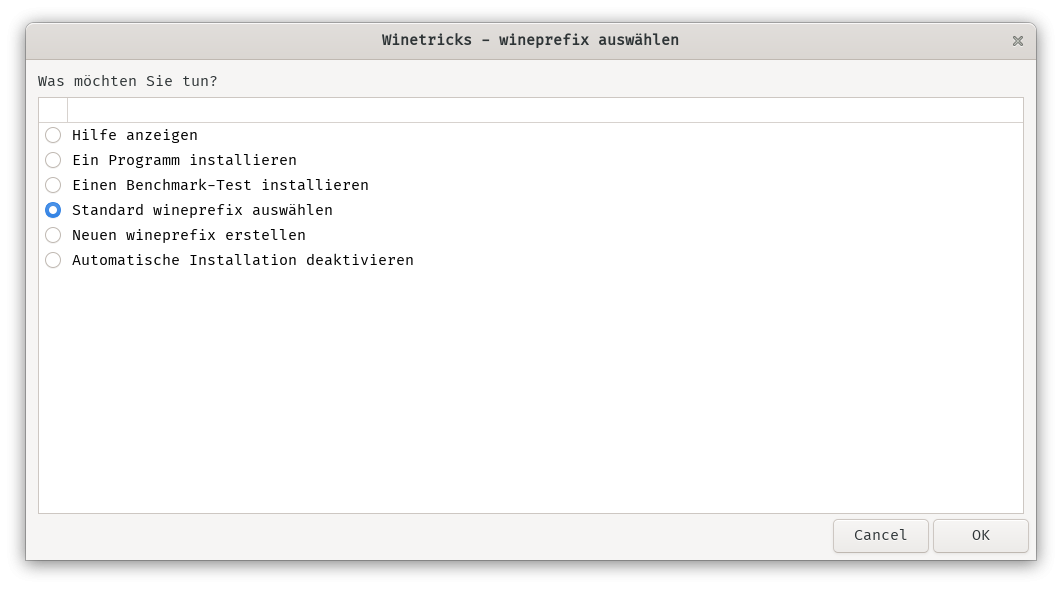
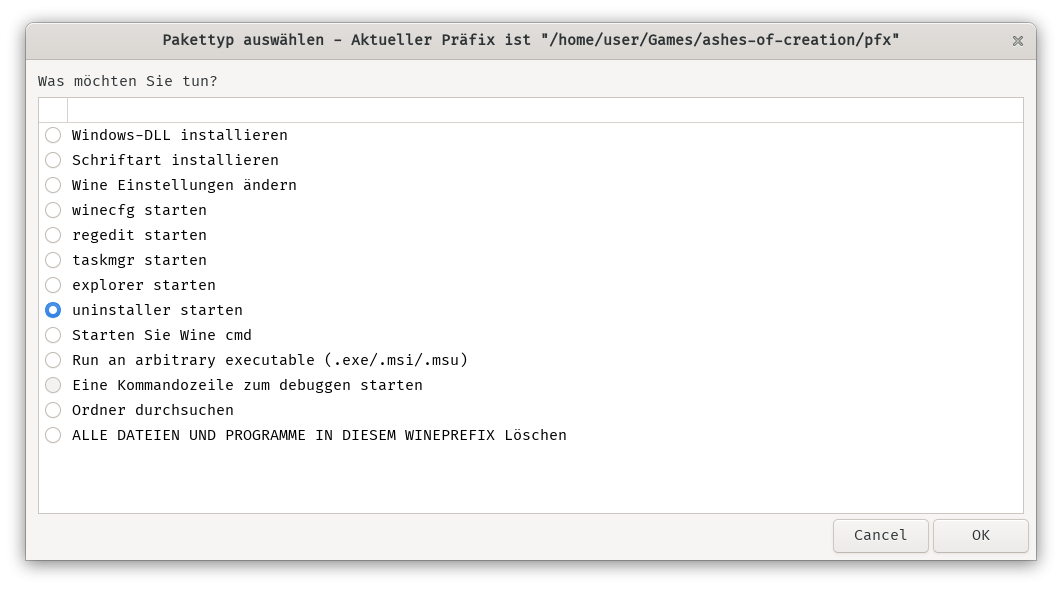
Choose the uninstaller
Select Webview2 runtime and press on change
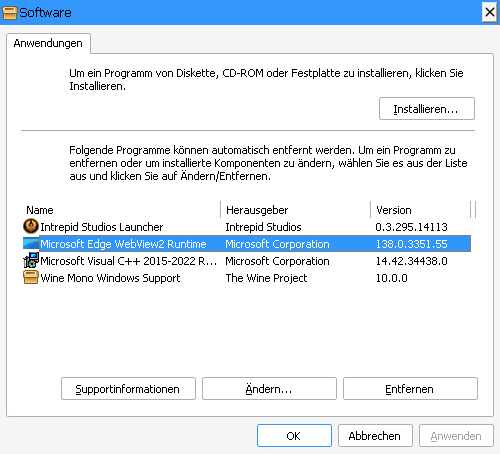
Then you click on repair
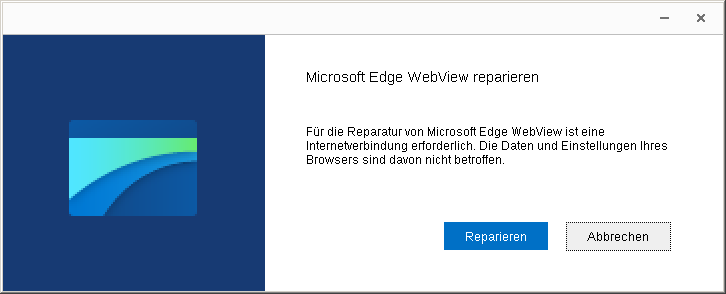
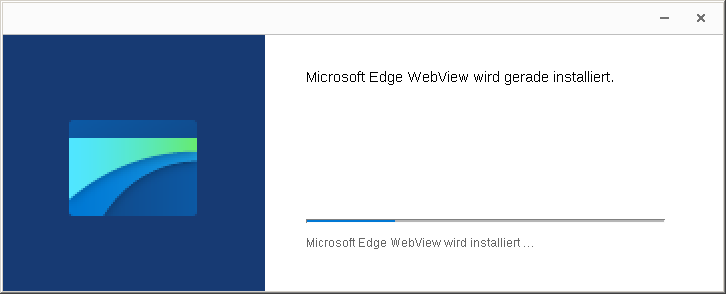
Then it should reinstall and works afterwards
 If you have issues with Nvidia cards out of memory try Proton Hotfix as runner in Steam.


